11 Outubro 2009

Extracting a Photo and adding a Radial Blur.effect - in English & em portugues

Hoje vou mostrar a vocês como extrair uma foto e dar um efeito muito interessante.
Today I will show you how to extract and add an radial blur effect to a photo:
Abra a foto no Photoshop e aumente ela até 300% no zoom. Esse detalhe é MUITO importante, porque assim vc extrai a foto sem aqueles recortes duros com angulos pontudos e evidentemente feios.
Depois do zoom a 300% vc usa a ferramenta de seleção polygonal, defina 1px de feather, e vai clicando lentamente e contornando em passos relativamentes pequenos a imagem.
Atenção: faça sempre por etapas, fechando a seleção a cada 15 cliques para ir limpando/deletando as partes extraidas de sua imagem.

Open the photo in PS and zoom it to 300%. This is important in order to avoid uggly edges. Use polygonal lasso tool with 1px feather. Keep short clicks and close your selection many times, and delete these parts. don't try to do everything at once, because you can loose you hard work!

Depois de finalizada, a sua imagem deve parecer assim:
When you are finished the image will look so, like mine here:
Agora selecione essa imagem (use ctrl e clique no ícone da layer)
Select the image
Em Selection (no Menu) escolha SELECT>modify>FEATHER e defina um valor em torno de 50% - 70% (experimente) e depois volte em SELECT e invert selection.
SELECT>modify>Feather it with 50%-70% - and than invert selection
E agora em Filter > BLUR> RADIAL BLUR com os settings abaixo
Go to FILTER> BLUR> RADIAL BLUR, with the following settings:

Com isso vc vai ter um efeito de sombra dinamicamente rodada assim:
This will be the result of this radial blur, see here below:
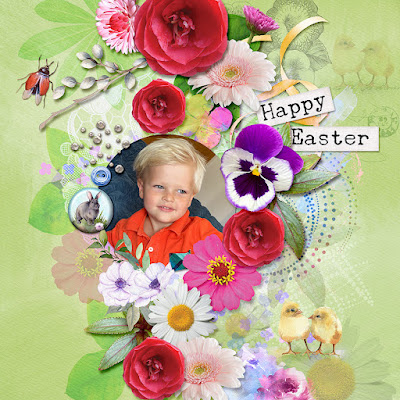
E aqui está o layout que fiz com essa imagem:
And here is my layout:

Thanks for visiting my blog! Obrigada por visitar meu blog!
Comentários são bem vindos e me animam a continuar dando dicas para vcs!!
Leave a comment, so I will feel that I'm not loosing my time, writing these tips and tricks in both languages!!! LOL!!

Happy Scrapping

Silke

10 Outubro 2009

Tutorial: How to Make Elf Wings in Photoshop


You will work with

- Threshold
- Flip
- Solid Color Layer
- Opacity and
- Fill Layer effect


Go to a park or to your garden and pick 2 different formed leaves.


Scan the leaves upside down, extract and cut with the polygonal lasso a wing format.
Duplicate the leaves and flip them (edit> transform> flip horizontal) in order to have 4 objects.

Save this part of your work. So you can go back any time you need.

Duplicate all 4 layers and hide the original leaves. You will need them later. Go to Image >Adjustments > THRESHOLD and see the settings below.

Now go to Image >Adjustments >INVERT and then select the whit areas (use magic wand – uncheck the continuous box – or select color range) and delete. At this point you can refine edges, or make other adjustments.
Create a new fill layer (Layer> New Fill Layer >Solid Color Layer) and check the bocx to clip with the previus layer in order to recolor your leaf.
Go to the original leaf (one or the hidden layers) and select the form. In a new layer, fill it with the color of your choice and set a stroke effect. Now set the fill to 50% more or less.
Attention: if you set the layer opacity to 50% the stroke will also look transparent. If you set the FILL to 50% – the stroke will remain non-transparent!

Add a charmed heart or a felted leaf and save your work!

12 Setembro 2009

TIP: Veerle's Video Tutorials at Vimeo

Olá
hoje eu tirei o dia para continuar meu aprendizado no Adobe Illustrator e aproveito para deixar aqui o link das páginas na web q eu mais gostei!!

Hi,
MyReaders
Vimeo is a great place to watch video tutorials. See here Veerle's tut for Illustrator on how to connect two circles and how to add a 3D effect!

How to draw a pawn shape in Illustrator by Veerle from Veerle Pieters on Vimeo.


Today I did also this here below absolutely great tutorial on how to create a swirl in Illustrator:

http://abduzeedo.com/swirl-mania-illustrator-photoshop

Veja o tutorial em português:
http://abduzeedo.com.br/swirl-mania-no-illustrator-photoshop

Here is the result to my work today:

Thanks for following me here and have an nice Sunday!

Happy Scrapping

Silke

10 Setembro 2009

La Tulipe Blog Train and freebie at TDS

Hi, readers.

HM Scrap Shop is the featured store at The Daily Scrapper. You can go over to TDS and grab the wonderful HM store collab freebie at the Issue 16, starting on September 11.

See here below the preview to my part from the HM Store Collab for TDS:

To commemorate this event, some of us (designers at HM) decided to make a color coordinated La Tulipe blog train!
So you have a double huge freebie to grab!

download my part here

Follow the links below to grab all the other goodies:

Albina Design
Ariana’s Kreations
Carla Holf
Carola Mondini
ChaDesignz
Chelly Oliveira
Cintia Designs
Debora Pas
Elyane Araujo
Fa Maura
Glayce Cavalcante
Helena Monteiro
HM ScrapShop
Ju Oliveira
Julia Fialho
Keka Designs
Lanna
Lilian Wing
Manrotka
Mari Liess
Mariana Barros
Paula Kesselring Designs
ScrapDesafios
Silke Papierstudio - YOU ARE HERE
Tania Ramalho

Here is the preview of the TDS free kit:

02 Setembro 2009

How to tear a Postage Sheet Frame

Hi, I'm here again! LOL!

Continuing to talk about Postage Sheet, here is how you can tear the edges of your frame. Follow the steps in my further post.
If so, you will have this situation here below:

Then select the area you would transform with the selection tool and go to >EDIT > TRANSFORM> DISTORT or SKEW

Drag and drop to the right.

You can also make an irregular selection with the polygonal selection tool and distort:


See here the result:

Now improve your skills an think outside the box:

Happy Scrapping!

Silke

30 Agosto 2009

Tutorial How To Create a Postage Paper Frame

Meninas, leitoras queridas!


Sempre vou procurar postar em português para vocês, mas muitas vezes meus tutoriais são auto-explicativos pelo passo a passo que eu crio e dá pra ver as imagens e adivinhar os comandos - não é? E também temos o tradutor do google que tá ali do lado e ajuda um pouco!!

Hoje vamos ver como se faz uma moldura pra 4 fotos simulando uma folha de selos.

Credits: layout and postage sheet paper by me, background paper and most elements from Pavlinka Summer on the Beach and Noah kits at SNT.
Bird, stitched heart and flower from Cucciola Designs - Easter Kit - and wordart and 2 sea elements from Kasia Sea Stories.


Hi, my dear readers!

Today I'm going to show you how to make a Postage Paper Frame for 4 photos.


First of all, open a new document, 2500 x 2500 pixels and 300 dpi! Then set the rulers in order for us to control the straight brush strokes.


2- See the blue guide lines below that you set by click and drag them from the rules.
3- CREATE A NEW LAYER! Don't forget to create this new layer.
4- Click on the Brush tool and open your brush layer palette (F7)
5- And set the brush like these settings here below:

6- Now you have to click on the Brush Tool and position it on the blue guide line.
7- Click once and then hold shift and click again nearly to the end of the guide line.

Automatically PS will stroke with spaced dots the whole line.
8- Duplicate this layer and turn it 90º . Drag the duplicated layer to the right. The position has to be exact when the two dots on the corner are overlayed.

9- Go ahead with the layer duplicating and the positioning on the exact place. Zoom the document in order to see it better. Hit [CTRL] and [+]
Open a paper and drag it into your work below the dot layers. See my result here when I opened a paper and underlayered it here:
Create a NEW LAYER for the photo windows.

Now select the retangle shape tool and make ONE rectangle in the inside of the dots. Duplicate the rectangle layer and position it to the right side. Repeat until you have all six done.
Merge these rectangle layers.
(select the layers and with the right mouse button choose merge selected layers)
Select the new rectangles layer by holding the CTRL key and clicking on the layer icon in the layer palette. Go to the paper layer and hit DELETE.

merge all dot layers and do the same: Select the DOT layer by holding the CTRL key and clicking on the layer icon in the layer palette. Go to the paper layer and hit DELETE.
We are done!!!

Please, leave a comment here if you like my tutorials. I will be motivated to do more if you do so!!!

Happy Scrapping

Silke


26 Agosto 2009

How to Advertise with an Animated Banner in Scrapbooking Digital

Hi, girls

SNT was the shop that I felt in love the first moment I saw it and when Carolyn accepted me to be a designer there I was really grateful and proud of this opportunity. This was nearly one year ago.
Since them we had a very great time as SNT Designer team and all the wonderful collab we did made us friends!

Now Carolyn had to close this shop and I'm very sad about this. But I understand her reasons and hope that we will find a new great place that we can call our scrap-home like this.

And like babys, that come to renew our world with new life and happiness, I'm also very proud to announce that I was accepted to a new shop:

cu 4 you


Tutorial Animated Banner in Photoshop


I'm learning how to make an animated banner in Photoshop CS3.
So I asked Google to help me and I found some a great tutorials.
To become a basic idea, make this here first:
Create A Heart Beat Effect Animation In Photoshop.


Then follow this here
Animated Advertising Banner In Photoshop By PSdlovers.

And then this here:
Using Photoshop and Imageready (or use only CS3 - ImageReady is incorporated in Filter>Animation), you can easily design animated banners for advertising campaigns.

And here is the result of my lessons:


I used a Kit from Sita (PSD Design). You can find it at Scrap-N-Tag shop until September, 2nd!

I did also two other banner ads, here:


These banners are sized to be used at The Daily Scrapper at Scrappers World Expo advertising pages. Read more tips on how to advertise your scrapbooking designs here.

These CU Doodle Trees I offer free at the cu4you store:


And for my blog readers a special freebie:
link expired


Happy Scrapping!

Silke

Blog Widget by LinkWithin